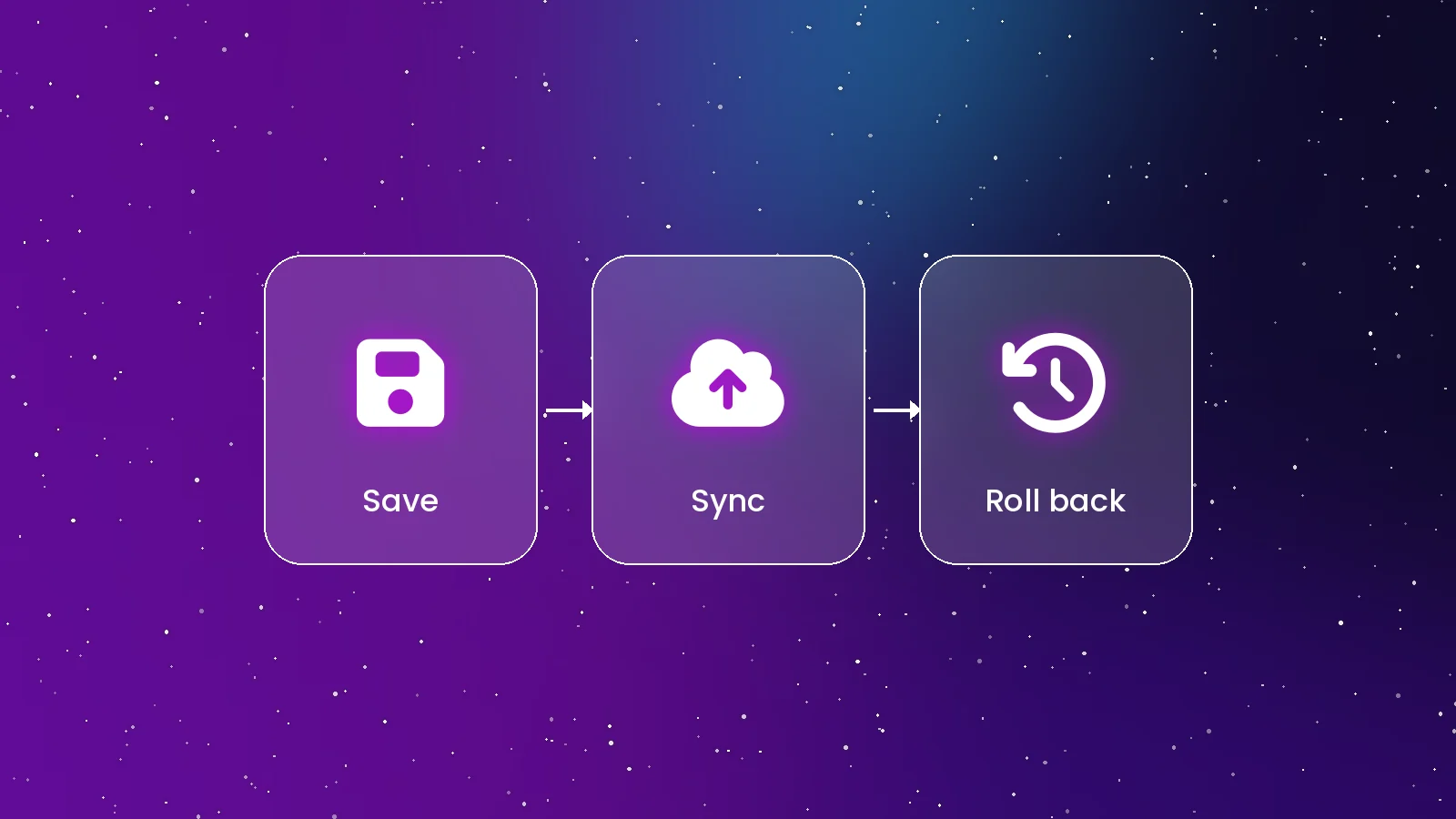
Losing a 60-hour save or getting an unwanted patch can ruin a game. GOG GALAXY has three features that help: cloud saves, version rollbacks and offline mode. Here's how each works.
Cloud Saves
For supported GOG games, GOG GALAXY uploads your save files to GOG's servers when you finish playing and downloads them on another computer signed in to the same account. There's nothing to set up beyond keeping cloud sync enabled.
Limits to know
- Support depends on the game; not every GOG title syncs saves.
- Games from other stores use their own platform's cloud saves.
- If local and cloud saves differ, GOG GALAXY asks which to keep — compare the dates carefully.
Rollbacks
For GOG games where previous builds are available, you can switch back to an earlier version from the game's installation settings. That's useful when a patch breaks a mod or introduces a bug. Pair it with turning off automatic updates for that game so the older version stays installed.
Update Scheduling
Settings let you schedule updates for installed games you aren't actively playing, so patches download at a convenient time. If a big update won't fit on your game drive, you can move the temporary update folder to another disk.
Offline Mode
When your connection drops, you can still launch installed GOG games. Play time and achievements sync once you're back online. Integrations and the store need a connection, of course.
Back Up Anyway
Cloud saves are convenient but not a backup strategy. For games you care about, copy the save folder occasionally to another drive or cloud storage you control.
Conclusion
Cloud saves, rollbacks and offline play make GOG games more resilient in GOG GALAXY — as long as you know which games support them. See all features on our features page.
Quick Answers
Do all GOG games support cloud saves?
No. Only games whose developers added support. Check the game page or settings.
Can I play without internet?
Yes, for installed GOG games. The client syncs when you reconnect.